Beauty Camera - Sweet Camera
- 4.7
- Rating
- 5.00M
- Installs
- Free
- Price

 Analysis by App-foxy
I tried Beauty Camera - Sweet Camera as a quick beauty and selfie editor, and my first impression was that it aims to keep the whole process uncomplicated: open the camera, take a portrait, adjust the look, and save something ready to share. That sounds simple, but beauty apps often become frustrating when the preview feels different from the saved image, when effects are too strong, or when the editing controls are difficult to understand. This app is most appealing when you want a fast visual refresh rather than a full photo-editing workstation.
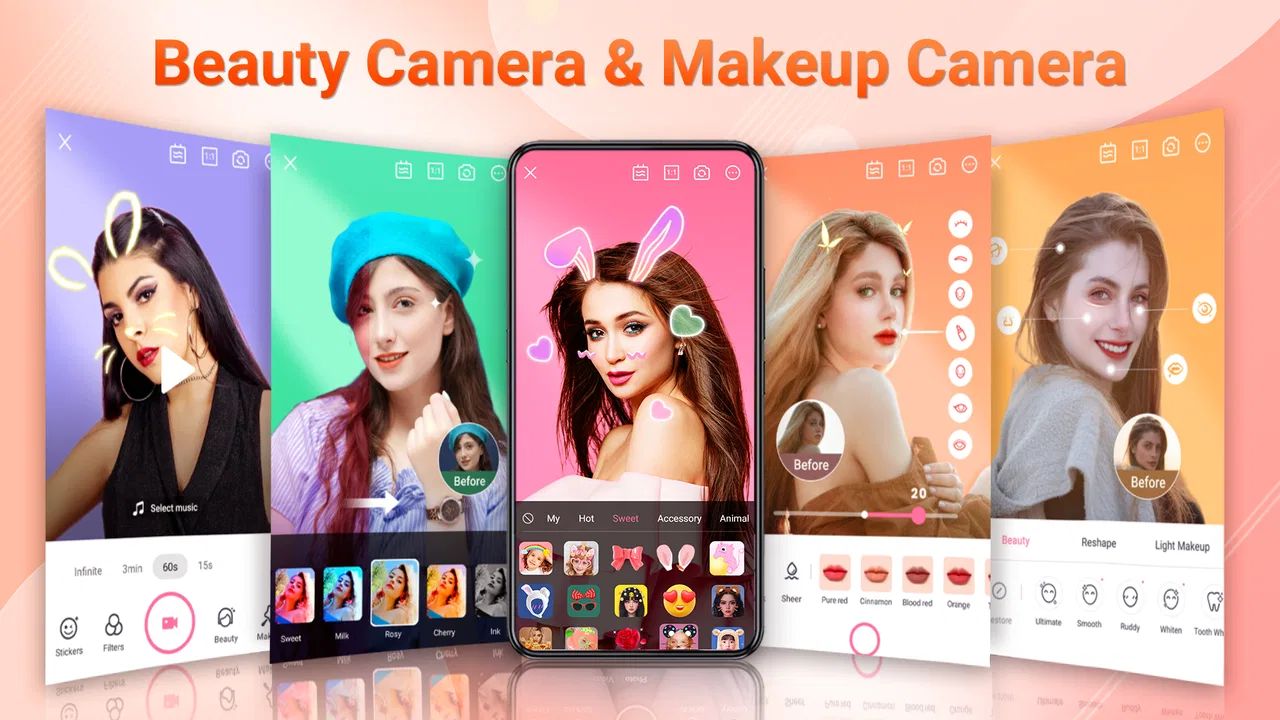
It comes from Leopard V7 and sits in the beauty category, with tools centered on selfies, makeup-style adjustments, filters, stickers, and everyday portrait editing. It is free to install, rated for Everyone, and supports devices running Android 6.0 or later. The current release is version 2.3.8, while optional purchases range from $1.99 to $19.99 per item. I would approach it as a casual camera companion: useful for profile pictures, messages, social posts, or a quick improvement to a photo that already has decent lighting.
Getting past the points where selfie apps usually feel difficult
The first place I would expect users to get stuck is not the editing itself, but the transition between taking a picture and working on it. A beauty camera can present several visual choices at once, and a new user may not know whether to begin with a filter, a makeup effect, a sticker, or a face adjustment. My advice is to start with the least dramatic option available, take a test image, and only then add stronger decoration. That makes it easier to see what each change is doing instead of judging a pile of effects all at once.
You May Also Like

 AccuWeather: Weather Radar
AccuWeather Review: A Quick, Clear Forecast for Everyday Decisions
For everyday plans, the best forecast is the one you can understand quickly. AccuWeather makes rain timing, radar, and local conditions easy to act on, with a few trade-offs.

 Hill Climb Racing
Why Hill Climb Racing Still Turns Crashes Into One More Run
A tiny car, a bumpy hill and one more upgrade: Hill Climb Racing keeps resurfacing because its simple chaos makes every near-miss feel personal.

 AliExpress - Shopping App
AliExpress Makes Global Shopping Feel Personal, but Shoppers Bear the Risk
AliExpress turns a global marketplace into a pocket-sized discovery engine. Its reach is useful, its shopping loop compelling, and its trade-offs easy to miss.

 Lords Mobile: Kingdom Wars
Lords Mobile Is a Kingdom-Building Routine, Not a Quick Match
A case-by-case verdict on the building, battles, device demands, and social commitments that make Lords Mobile rewarding for some players and exhausting for others.

 PDF Scanner app - TapScanner
TapScanner Makes Paperwork Easier to Capture, Check, and Share
TapScanner makes scanning with a phone feel less like a rescue operation and more like a dependable step in getting work done. Its capture tools are useful, though not flawless.

 Block Blast!
 Shows How Much a Puzzle Game Can Leave Out
A quiet grid game shows why puzzle players increasingly value instant clarity, repeatable skill and low-pressure play—and where the genre still needs to catch up.
More From Our News Desk
View All News


Another common friction point is over-editing. A face can look polished in the live preview but unnatural after several adjustments are combined. I found that the most reliable workflow is to make one change, pause, and compare it with the original before continuing. Filters are best treated as a finishing layer, not as a replacement for basic framing and light. If the photo is already dark or heavily backlit, a beauty effect may soften the appearance without solving the underlying problem.
The app’s store presence is substantial, with more than five million installs and an average rating of 4.7 from roughly twenty thousand ratings. Those figures suggest that the basic selfie workflow works well for many casual users, but they should not be read as a guarantee that every phone will behave identically. Camera processing, available storage, screen quality, and the Android version can all affect how smooth the experience feels.
What I would check before blaming the editor
If the camera preview is black, freezes, or refuses to capture an image, I would first close the app and reopen it, then check whether the phone’s normal camera works. That simple comparison separates a device-wide camera problem from an issue limited to this editor. I would also make sure the app is allowed to use the camera and save photos. Permission settings can change after an Android update or after an app has been unused for a while.
Storage is another practical check. A phone that is nearly full may still open the editor but fail when it tries to save a new image. Removing a few unnecessary files, restarting the device, and trying a smaller editing session can reveal whether the problem is capacity rather than the beauty tools. I would avoid repeatedly tapping the capture button while the app is processing, because that can make a slow device appear to have stopped responding.
For imported pictures, I would confirm that the image is actually available in the phone’s gallery and that the app can access the relevant media. If only one picture fails while other images open normally, the file itself may be unusually large, damaged, or stored somewhere the phone is not currently exposing correctly. Trying a recently taken image is a useful test before changing more settings.
A setup routine that saves time
My preferred setup is deliberately short. I would install the app, open it in good light, allow only the access needed for the camera or saved images, and take a plain test selfie before exploring stickers or makeup effects. This gives a clean reference. If the result already looks too soft, too bright, or too artificial, I can identify that before spending time building a more elaborate edit.
I would also check the phone’s front-camera orientation and hold the device at a comfortable distance. A face that is too close to the lens can look wider or more distorted at the edges, and no filter can completely correct that perspective. Moving the phone slightly farther away and cropping later often produces a more natural portrait than increasing a beauty effect.
Because the app is free but includes optional purchases, I would pay attention to which tools are immediately available and which ones ask for payment. I would not assume that every visible effect belongs to the free experience. If a purchase screen appears, I would read the item and price carefully before confirming anything. The listed purchase range reaches from $1.99 to $19.99 per item, so casual experimentation should not turn into an accidental purchase.
The Everyone age rating makes the app approachable for a broad audience, but that does not remove the need for sensible photo habits. I would avoid editing or sharing pictures of other people without their permission, especially when stickers or beauty changes could make the result embarrassing. A simple camera app can still be used thoughtfully.
Recovering a workflow when something goes wrong
When an edit appears to disappear, I would first check whether I am still viewing the original image or whether the change was applied but not saved. I would make one small adjustment and save a test copy before creating a detailed version. This is a better recovery strategy than doing a long sequence of edits and discovering at the end that the final file was never written.
If saving fails, I would try a fresh photo and a shorter edit. A large number of stickers, effects, or layered changes may place more demand on an older phone, while a basic portrait can show whether the save function itself is working. Restarting the app can also clear a temporary processing problem. If the issue happens only with one image, I would use another source photo rather than repeatedly forcing the same file through the editor.
For a preview that looks different from the saved result, I would compare the file in the phone’s regular gallery rather than relying only on the in-app display. Screen brightness and the app’s live preview can influence perception. I would also inspect the image at normal viewing size instead of zooming in to judge every softened edge. Beauty editing is designed for an overall impression, and extreme zoom can make minor processing artifacts seem more important than they are.
A useful recovery habit is to keep the original until the finished picture has been checked. I prefer saving a new version rather than replacing the only copy, particularly when I am testing a stronger filter or a makeup-style effect. That gives me a way back if the result is too artificial, if the crop feels wrong, or if I later decide that a lighter edit suits the photo better.
When the app is not really the cause
Many disappointing selfies begin before the editor opens. Uneven indoor lighting, a bright window behind the subject, a dirty lens, or a moving hand can make a portrait look poor. In those situations, increasing smoothing or adding a decorative filter may hide some texture while leaving the face flat, noisy, or oddly colored. I get better results by cleaning the lens, facing a soft light source, and keeping the background simple.
Network conditions can also confuse the experience when an effect or store element takes time to appear, but I would not assume every delay is an internet problem. If the camera itself is slow, other apps are also stuttering, or the phone is hot, the device may be under strain. Closing unused apps and allowing the phone to cool is a more sensible first response than repeatedly reinstalling the beauty editor.
There is also a difference between a technical fault and a creative mismatch. Someone looking for precise color correction, layers, masks, or detailed retouching may find this app less suitable than a dedicated photo editor. Its appeal is speed and accessibility, not an extensive professional workflow. Conversely, a user who wants a fast selfie with a visible style may find a complex editor unnecessarily slow.
The same applies to privacy expectations. I would be careful about choosing images for editing and about sharing finished portraits. The app is designed around personal photos, so I would use it for pictures I am comfortable handling on my phone and would review the final image before posting. This is especially important when an automatic-looking beauty change alters someone’s appearance more than intended.
How it compares with familiar alternatives
Compared with the ordinary phone camera, Beauty Camera - Sweet Camera offers a more immediate beauty-oriented workflow. The standard camera is usually better when I want a neutral original, dependable manual control, or a record of how a scene really looked. This app becomes more useful when I already know I want a selfie with makeup-style touches, a filter, or a sticker and do not want to move through several separate editing tools.
Compared with a full photo editor, it is easier to approach but less appropriate for careful image work. A professional-style editor is the better choice for correcting a difficult exposure, preparing a precise crop, or working with several layers. I would choose this app for a quick profile image or a playful message, then switch to a more advanced tool when the photo needs controlled retouching rather than a fast beauty treatment.
It also differs from social media camera tools because its main purpose is the portrait-editing experience itself. A social platform may be more convenient if the final destination is already decided and I want to record and publish immediately. This app makes more sense when I want to prepare the image first and decide later where to share it. That separation is helpful for keeping an original and testing more than one look.
Who will get the most from it
I think the strongest audience is someone who takes frequent selfies but does not want to learn complicated editing controls. It suits quick profile-picture updates, casual before-and-after styling, birthday messages, and playful group photos where stickers or a light filter add personality. It is also a reasonable starting point for a person who wants to experiment with makeup-style presentation without opening a desktop editor.
A realistic everyday example would be preparing a new messaging profile photo after work. I would take several pictures near a window, choose the one with the clearest expression, apply a restrained beauty adjustment, test one filter, and then compare the result with the unedited original. If the image still looks like me, I would save it as a new copy and use that version. The entire approach is faster than manually correcting every small detail, while the comparison prevents the effect from becoming too strong.
I would recommend skipping it if your priority is a completely natural camera output, advanced manual controls, or detailed professional retouching. I would also look elsewhere if you dislike optional purchase prompts or prefer an editor with a very explicit, technical control over every adjustment. The app’s simplicity is its advantage for some people and its ceiling for others.
My practical verdict after using it
Beauty Camera - Sweet Camera is best understood as a quick, approachable selfie editor rather than an all-purpose photo studio. I like the idea of handling the portrait, beauty adjustment, makeup-style look, filter, and sticker in one casual workflow. The free entry point and broad Everyone rating make it easy to try, while the strong average rating and large install base show that it has found a clear audience.
My recommendation is to use it with restraint: begin with clean lighting, make one change at a time, preserve the original, and check the saved result in the regular gallery. Those habits matter more than piling on effects. If the camera fails, test the phone camera, permissions, storage, and a fresh image before assuming the app is broken. If the result is simply too stylized, the solution is usually a lighter edit or a different kind of editor, not more troubleshooting.
For a free beauty app from Leopard V7, version 2.3.8 offers a practical option for fast, expressive portraits on compatible Android devices. I would keep it installed for quick selfies and playful edits, but I would not make it my only photo tool. Its best results come when I treat it as a finishing shortcut: useful, friendly, and enjoyable for everyday portraits, provided I remain aware of the purchase prompts and the limits of automatic-looking beauty effects.
FAQs for Beauty Camera - Sweet Camera
01What features does Beauty Camera - Sweet Camera offer?
Beauty Camera - Sweet Camera provides a variety of features such as real-time beautification filters, makeup effects, and skin smoothening tools. Additionally, it offers a wide range of stickers, AR effects, and editing tools like cropping and resizing to enhance your photos effortlessly.
02Is Beauty Camera - Sweet Camera free to use?
Yes, Beauty Camera - Sweet Camera is free to download and use. However, the app may offer in-app purchases or premium features that require a subscription, such as advanced filters, ad removal, or exclusive content. Be sure to check the app for any specific pricing details.
03How user-friendly is the interface of Beauty Camera - Sweet Camera?
The interface of Beauty Camera - Sweet Camera is designed to be user-friendly and intuitive. Users can easily navigate through its features with a clean layout, making it accessible for both beginners and experienced users who want to quickly enhance their photos.
04Does Beauty Camera - Sweet Camera support high-resolution images?
Yes, Beauty Camera - Sweet Camera supports high-resolution images, allowing users to capture and edit photos without compromising quality. The app ensures that your photos maintain their clarity and detail, which is ideal for sharing on social media or printing.
05Is my data safe with Beauty Camera - Sweet Camera?
Beauty Camera - Sweet Camera prioritizes user privacy and data security. The app typically follows standard privacy protocols to protect user information. However, it's always advisable to review the app's privacy policy and permissions before downloading to ensure you are comfortable with how your data is handled.
Pros
- Intuitive interface for easy navigation.
- Wide range of filters and effects.
- Real-time beauty enhancements.
- High-quality photo output.
- User-friendly editing tools.
Cons
- Contains frequent ads interrupting use.
- Limited free features; in-app purchases needed.
- Occasional app crashes reported.
- Requires high storage space.
- Some filters overly artificial.

Beauty Camera - Sweet Camera
Gallery